Action Lists
Each Action List in FasterFiles can consist of one or multiple arbitrary actions in an arbitrary order.
When executing the Action List, all assigned actions are executed after each other. Action Lists can either be started and executed by pressing a keyboard shortcut - the so-called HotKeys - or also via batch commands using the program version FasterFiles CL.
In the following, among others, you can see how to create action lists and how to edit or delete them later.
Create Action Lists
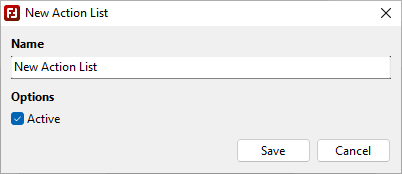
In order to create an Action List in FasterFiles, first, a HotKey has to be created to which you can assign your Action List. If you have a HotKey, select it from the list and click on the button "New Action List". After that, the following window will open:
Windows 11 - Windows 10 - Windows 7
In this window, you can enter a name for your list and you can specify using the option "Active" whether this Action List should be displayed when pressing the HotKey or whether this should be disabled. With "Save" you can create your Action List.
After that, you can add Actions to your Action List. For this, please look here.
Edit or Delete Action Lists
If you want to edit or delete an existing Action List, for example if you want to change their name or if you want to set the list active or inactive, first you have to select the corresponding HotKey to which the list is assigned. Subsequently, all Action Lists of this HotKey will be displayed in the list right to the HotKey list. Just right click one of those Action Lists and select "Edit" or "Delete" from the context menu. The window for editing is the same as the window for creating Action Lists that was introduced in the section before.
Move Action Lists and Action List Folders
In order to move an Action List to another position within the list, you can just use your mouse and move the list. If you have determined in the HotKey settings, that it should be possible to use folders for Action Lists, each Action List can also be a folder for another list. For this, you can just move one list onto another.
Save Action Lists as File
To save a single action list with all of its actions regardless of its parent HotKey as an independent file, you can proceed as follows: First, click on the HotKey, to which the action list is assigned to, to load the action lists of this HotKey into the area to the right of the HotKey list. You can then right-click on the action list in question and select "Export" from the context menu. A save dialog then opens in which you can select a storage location and a name of your choice for your action list.
Action lists have the file extension FFAL (FasterFiles Action Lists) and therefore differ from the files in which the HotKeys are stored, which have the file extension FFHK (FasterFiles HotKeys). You can use the action list files, for example, if you want to execute an action list via a script or the command line. We explain how this works in the tutorial about controlling FasterFiles via scripts.